
Maybe you feel jealous about Google’s new phone, but you already know that you can also enjoy almost all of the features comes with Google Pixel on your Nexus. Today, I’m going to guide you on how to get another excellent feature of Google Pixel; it’s navigation button with Google Assistant animation. So let’s know how to get Google Pixel navigation button with Google Assistant animation on your Nexus.
You can Google Pixel navigation button with animation on your Nexus 5X and 6P with root access and beta Android 7.1.1 installed.
Google Pixel Navigation Button with Google Assistant Animation on Nexus
As mentioned that is also some requirements you need to fulfill before following the steps. Make sure you meet all the requirements given below and then head to the steps.
Requirements
- Rooted Nexus 6P or 5X
- Android beta 7.1.1 installed
- Custom recovery installed
Those are the requirements you need to fulfill before following applying the steps. Now let’s head to the steps of how to Google Pixel navigation button with Assistant animation.
Recommended: Google Pixel’s camera on your Nexus
Steps
- After making sure that you meet all the requirements to get Google Pixel navigation button with Google Assistant animation just follow the steps given below, and you will get the work done.
- At first, you will need to download a file in the .zip format given below to get the nav button and the animation also. Just click on the download link given below according to your device model.
- Google Pixel Nav Bar Animation for Nexus 5X – Download
- Google Pixel Nav Bar Animation for Nexus 6P – Download
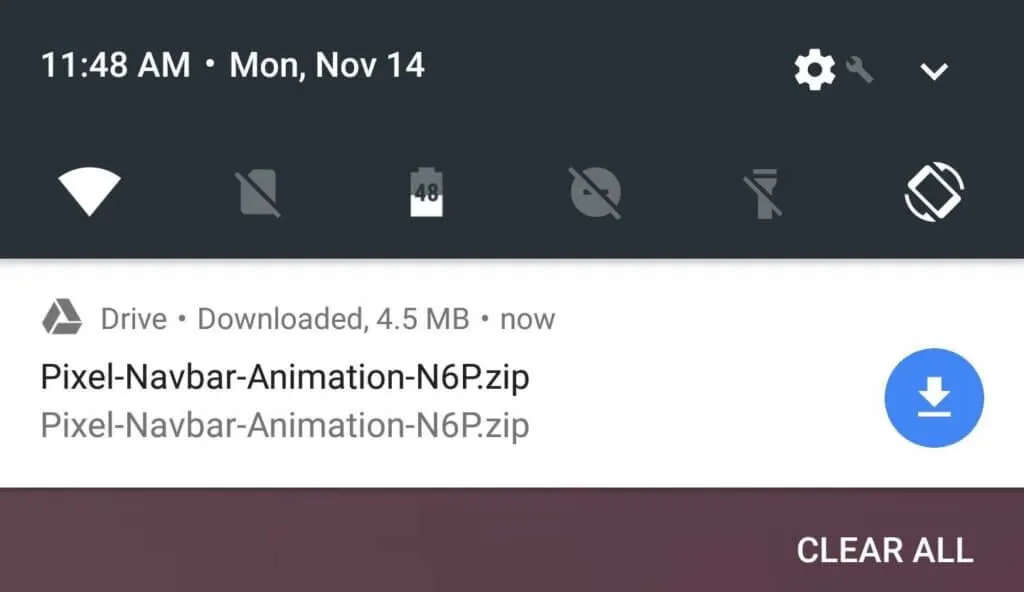
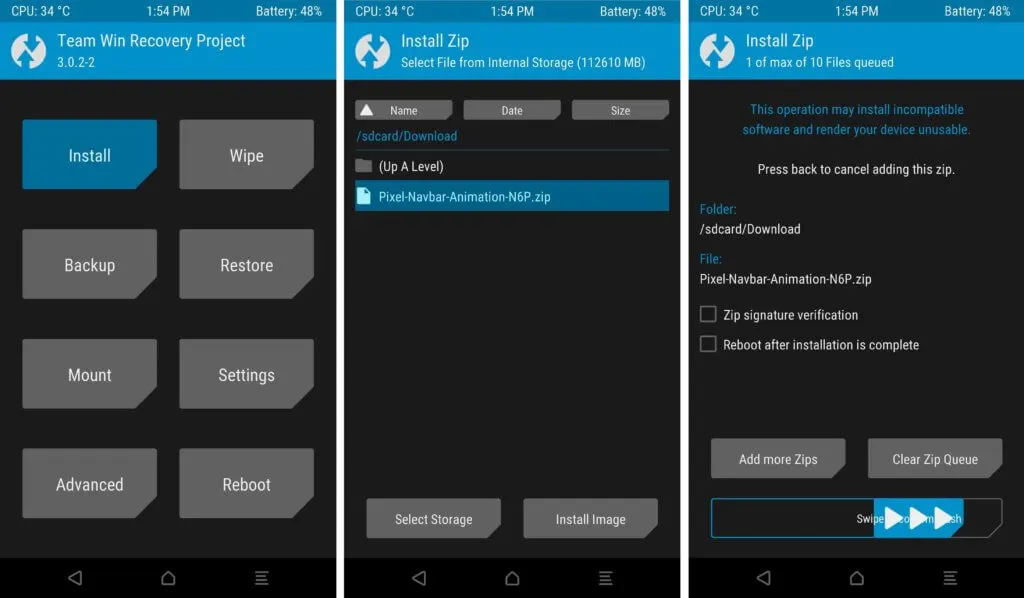
- After downloading the file on your Nexus, it’s time to flash it on your device from recovery options. Here I would like to recommend you to use TWRP recovery, which is reliable and easy to use.
- Go to your Nexus recovery options and then click on the Install button and then select the Pixel Navbar Animation file you have recently downloaded and only flash in on your device by swiping below.
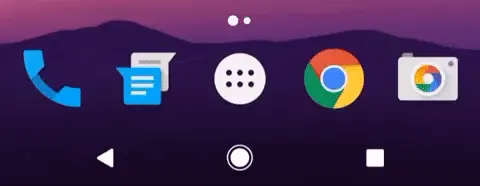
- After completing the flash just turn on your device, and you will see the difference. Now you can enjoy Google Pixel navigation button with Google Assistant animation on your Nexus. Now long press the home button to see the color dots.
That’s how you can get Google Pixel navigation button with Google Assistant animation on your Nexus. If you face any problem after flashing the file and rebooting your device, System UI has stopped then hard restart the device by holding 10 second your Nexus’s power button. If you liked the article be sure to share it with your friends and stay tuned for more tricks on Google Assistant.

Leave a Comment