
It’s really very easy to enable or disable your Android’s WiFi hotspot to share your mobile data with another device over WiFi. This guide is specially for those, who are new to Android OS or new to smartphones. And here I’m going to show you how to turn on Wi-Fi hotspot on Android devices.
At first let me tell you that Android OS is just awesome, do I really have to mention that? Well, you have finally moved to Android want to know how to turn on Wi-Fi hotspot to share your internet connection with another devices.
To turn on Wi-Fi hotspot on your Android device all you have to do is follow the steps given below and enjoy wireless internet on all other devices. A normal Android device can handle up to 8 devices, that means you can connect up to 8 devices on your Wi-Fi hotspot.
How To Turn On Wi-Fi Hotspot On Android Devices
To enable Wi-Fi hotspot on your Android follow the instructions given below –
For Android 4.4
- At first go to Phone Settings
- Then select More
- Now click on Tethering & portable hotspot
- After that tick the box near Portable Wi-Fi hotspot
And you are all done. This is the only method available for most of the Android devices running on Android v4.4 except the Samsung Phones.
For Android 5.0
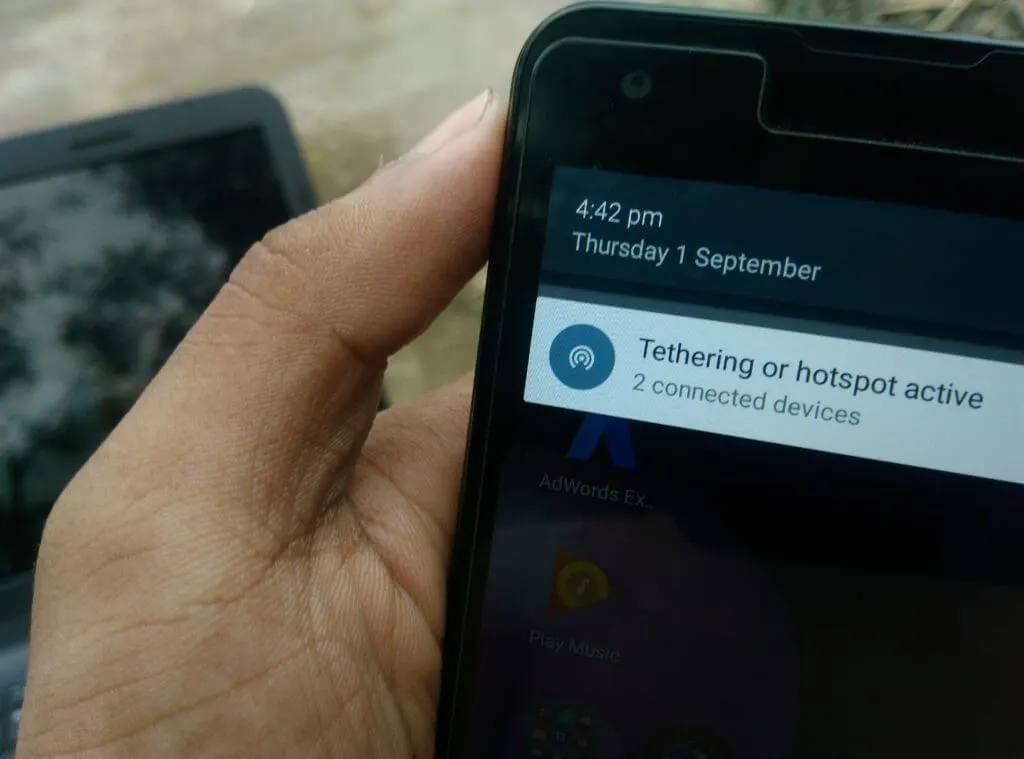
There are total two way available to turn on/ off Wi-Fi hotspot on Android Lollipop v5.0 running Android devices.
Method 1
- Scroll down your Notification Window
- There you will find an option writing Hotspot
- Click on it to turn on Wi-Fi hotspot and same to off it.
Method 2
- Go to Phone Settings
- Now Click on More
- After that click on Tethering & portable hotspot
- Now turn on the Portable Wi-Fi hotspot by clicking on the option
For Android 6.0
On Android 6.0 Marshmallow you can turn on/ of Wi-Fi hotspot just like Android Lollipop. There are two way available to turn on Wi-Fi hotspot on Android Marshmallow.
Method 1
- Scroll down Notification window and check there if an option called Hotspot available
- If it is available click on it to turn on Wi-Fi hotspot
- If not slide left the options and there you will find hotspot option
Method 2
- Go to Phone Settings
- Click on More
- After that go for Tethering & portable hotspot
- Now click on Portable Wi-Fi hotspot option to turn it on
Conclusion
This is how you can turn on or off Wi-Fi hotspot on various Android devices, and share your Internet connection with another devices. But before you leave your Wi-Fi hotspot turn on make sure to add security to it. Know how to protect your Wi-Fi hotspot with password and share internet wirelessly.

Leave a Comment