
In this busy life scheduling, things help us a lot. You know how to schedule posts on Facebook but do you that you can also schedule mail in Gmail? Well, for those who don’t know how to do this, here I’m going to show you how you can schedule mail in Gmail.
Scheduling mail in Gmail can help you many ways, just don’t need to care about time a lot. Write the mail when you gets time and schedule it.
Below I have added a very simple way to schedule mail in Gmail. So, without wasting time lets get started and start scheduling emails.
How To Schedule Email in Gmail
This method will work for Firefox 38+, Chrome 5.0+, Safari 5.1+, and Opera 15+. Works with Gmail and Google Apps email.
Steps to Schedule mail
At first, you will need to go to a website called Boomerang for Gmail and download the web browser extension from there.
Visit Here
Go to the website mentioned above and then click on the big red button written Add this to your Gmail.
Then you will be asked to add their extension on your web browser. Just click on Add extension button, it will take a second only.
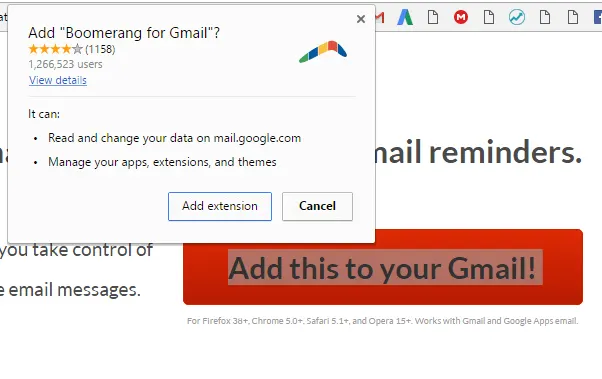
After the successful installation, it will redirect you to Gmail, now just log in, and it will show you a quick guide to starting.
Now you are ready to schedule emails. To schedule mail in Gmail, just click on the extension icon of Boomerang.
It will redirect you to Gmail’s compose page and there below Send button you will see another button writing Send Later. Click on send later button to schedule the mail.
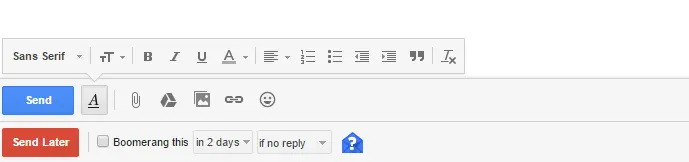
Once you click on the send later button, it will ask you to schedule the time as shown in the screenshot below.
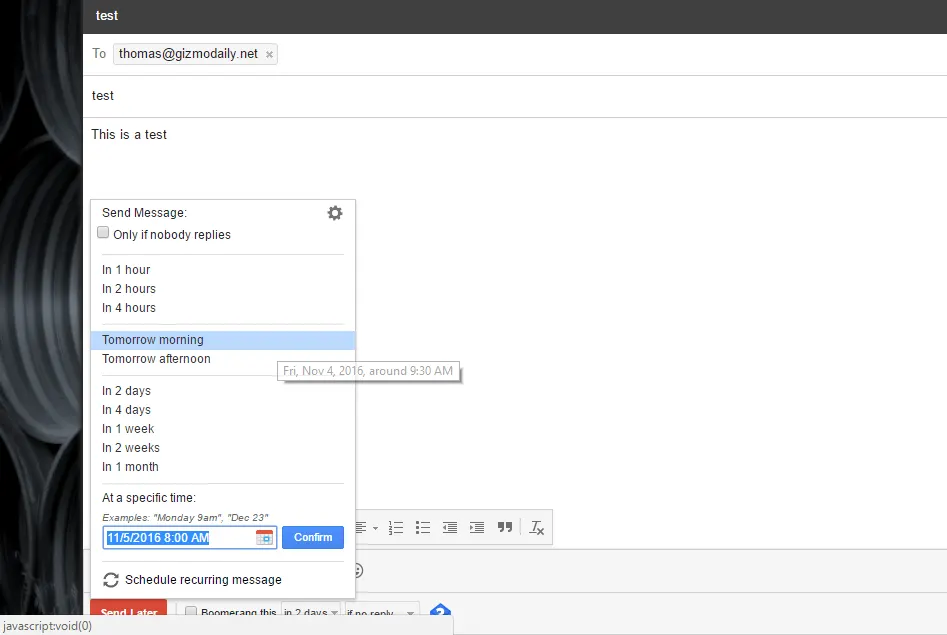
Once you the done with writing the mail, only schedule it and do other important works.
That’s it.
Isn’t it very simple? Boomerang makes scheduling mail very easy, and you can do it for free. You can use this method to schedule mail in Gmail and save a lot of time and pressure.

Leave a Comment